
Rich answers in chat
Ask an agent for a diagram or a data table, then explore and export the result without leaving the chat.
Updated 2026-11-12
Farero draws an agent’s reply as a full document. A diagram appears as a picture you can zoom. A table gets controls to filter it and copy it into a spreadsheet. Every agent that runs in Farero is told what the chat can draw, so you can ask for these in plain words in Codex, Claude Code and OpenCode chats.
| Ask for | What appears in the reply | What you can do with it |
|---|---|---|
An architecture or flow diagram | A D2 or Mermaid diagram | Zoom in fullscreen, change the layout, download SVG or PNG |
A comparison or a list of records | A table | Filter, sort and select rows, then copy them into a spreadsheet or download CSV |
A formula or a derivation | Typeset math | Read the equations instead of raw LaTeX |
A static HTML page or an SVG | A code block with a Preview tab | See the page or image, then download the source |
A patch | A code block with a Diff tab | Read the added and removed lines in color |
A screenshot from the workspace | The image itself | Open it full size |
Where something is in the code | File links such as | Open the file at that line |
Sources for a claim | Footnote markers | Read each note next to the text |
Worked example: draw a request path
Illustrative.
01 · Goal
See how one API request moves through a repository, as a diagram you can zoom and save.
02 · Setup
A workspace for a repository with an HTTP API. Any provider works.
03 · Prompt
Read the code that handles one incoming API request. Draw a D2 diagram of the path it takes from the route handler to storage, with the middleware and services in between. Label each arrow with the data that passes along it. Under the diagram, list the files you read.04 · Evidence produced
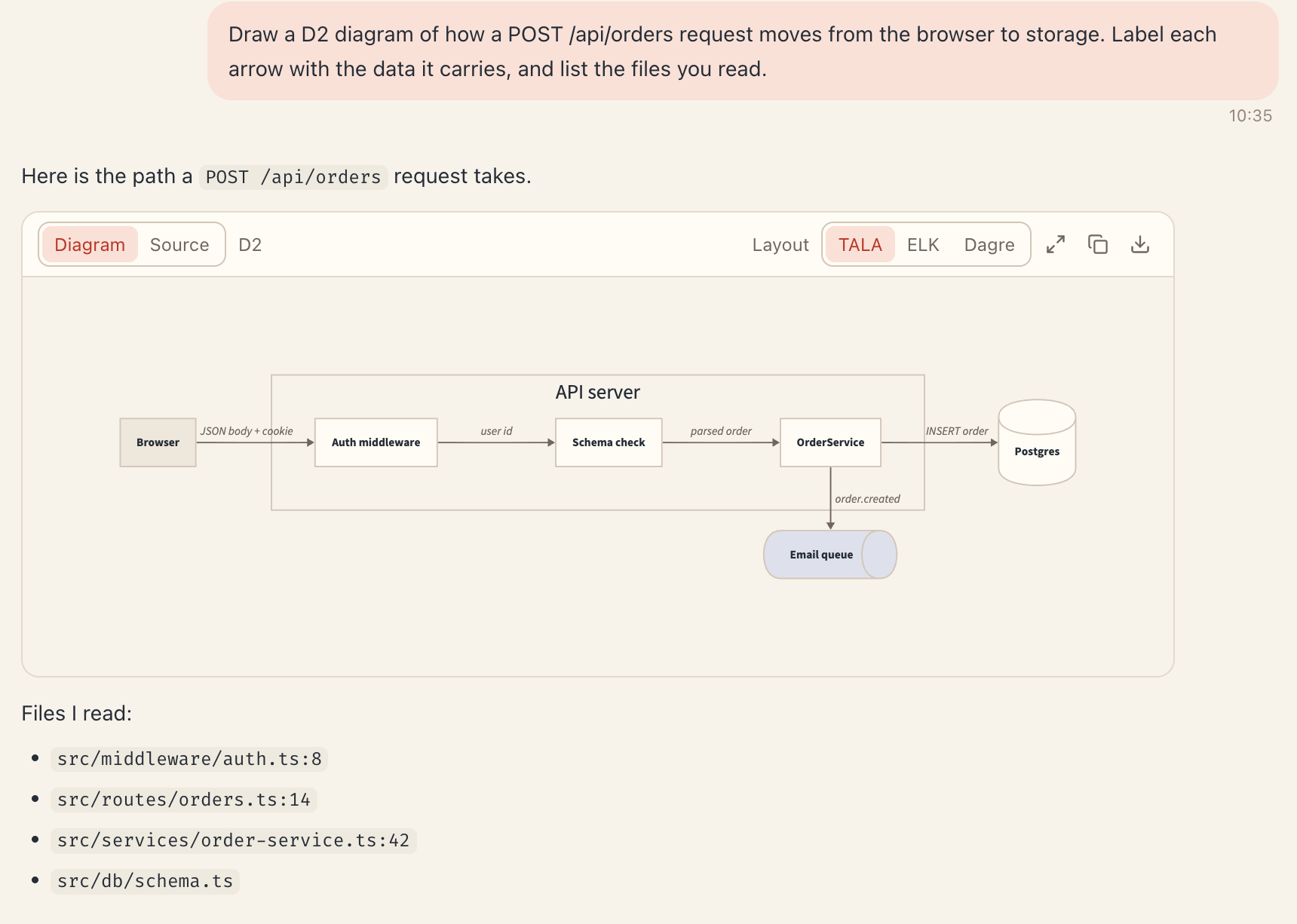
The reply shows the diagram in place, followed by the list of files. Diagram and Source switch between the picture and the D2 text. Fullscreen opens a canvas you can pan and zoom, and the download button saves SVG or PNG.
05 · User review
The diagram shows how the agent read the code. Before you share it, open two of the listed files and check that their arrows match the calls you find there.
Diagrams
Agents draw diagrams in D2 or Mermaid. D2 suits architecture where services sit inside larger systems. Mermaid has special types such as sequence and state diagrams. Name the language or the type when you want a specific result, for example “a Mermaid sequence diagram of the sign-in flow”.
Each diagram has a Diagram and Source switch and a row of layout choices. D2 offers TALA, ELK and Dagre. Mermaid offers Auto, ELK and Dagre. Try another layout when lines cross or labels crowd together. Fullscreen opens a canvas you can pan and zoom. The download button saves an SVG or PNG file, and the copy button copies the source.
Tables
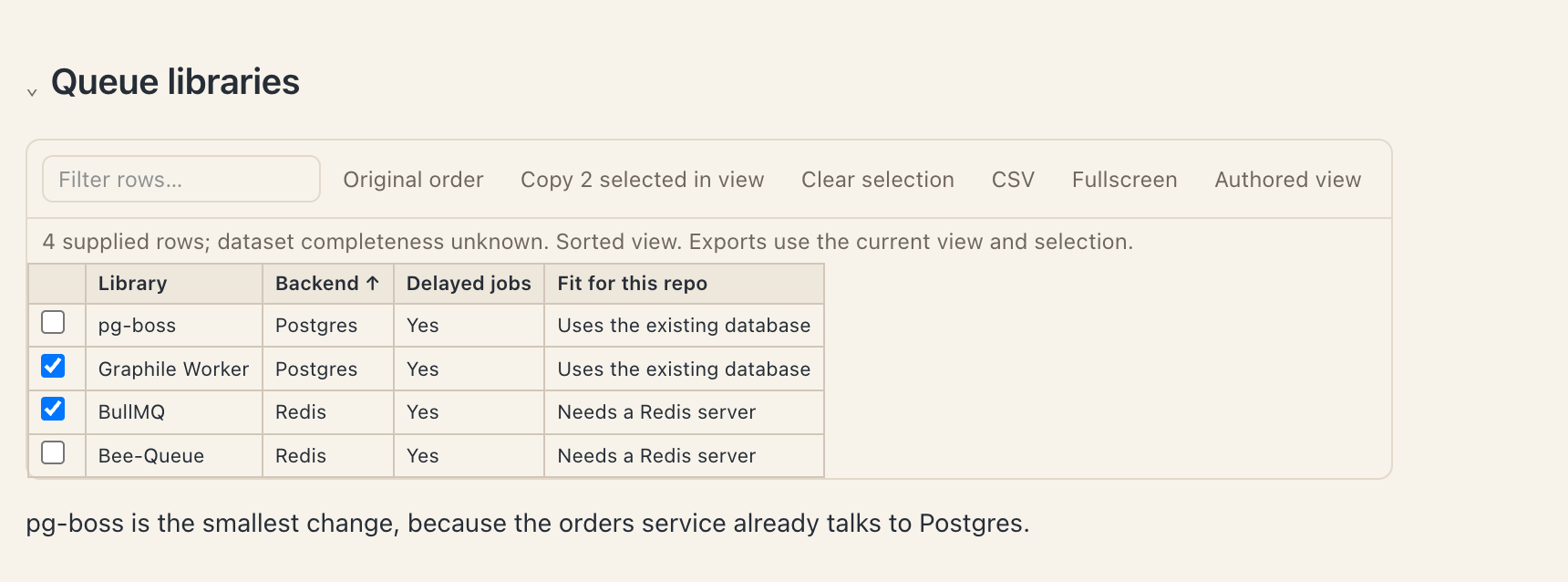
A table first appears exactly as the agent wrote it. Choose Explore table under it to work with the rows:
- Type in Filter rows to keep only the rows that match.
- Click a column header to sort by it. Click it again to reverse the order.
- Tick rows to limit copying and export to those rows.
- Copy for spreadsheet copies the current view so that it pastes into separate cells.
- Copy table copies the table with its links, so links stay clickable where you paste them. It sits beside the table and in the explorer. Where only plain text fits, each link pastes with its full address.
- CSV downloads the current view as a file, named after the conversation.
- Fullscreen gives the table the whole window.
Original order clears the filter, the sort and the selection. Authored view returns to the table as the agent wrote it. A table with more than 100 rows shows them in pages.
Math and footnotes
Ask for a formula and the agent writes it in LaTeX, which Farero typesets in the reply. Select an equation and choose Copy Markdown to copy its LaTeX source.
When an agent cites sources with footnotes, each reference shows as a small number. Click it to read the note next to the text.
Paste a command into your terminal
On the Mac running Farero, open the app chooser in Files and choose Ghostty 1.3 or later. Shell code blocks in chat show the selected terminal’s icon beside the copy and download buttons. Click the icon to copy the command and paste it into a new Ghostty window in the workspace folder. Review or edit the command, then press Enter to run it. Ghostty may ask you to confirm a multiline paste. Farero remembers your terminal even after you choose an editor in Files. The paste button is enabled for terminals that support this action; currently, that is Ghostty on macOS.
For example, when an agent suggests git diff --stat, click the Ghostty icon on the code block. Check the folder and command in the new terminal, then press Enter to see the changed files. If macOS asks whether Farero can control Ghostty, allow automation so Farero can paste the command.
Previews of HTML, SVG and patches
Every code block has buttons to copy and download its source. Some blocks also get a second view:
- A complete HTML page gets a Preview tab that shows the page.
- An SVG image gets a Preview tab that shows the image.
- A diff or patch gets a Diff tab with the added and removed lines marked.
The HTML preview shows layout and styles only. It runs no scripts and makes no network requests, so buttons and live data in the page stay still. Blocks larger than 1 MiB show their source only. Copy and download still work for them.
Files, images and media
When an agent names a file in the workspace, the name becomes a link. Click it to open the file in Farero. A reference with a line number, such as src/server.ts:120, opens the file at that line. Images, PDFs, video and audio open in a viewer.
An agent can also put a workspace image in its reply, for example a screenshot from a browser test. Click the image to see it full size.
Right-click a link for more choices. Open in split view shows the file or web page beside the chat, and Pin as tab keeps it open as a tab. Copy path and Copy link copy the target.
Tool results
Expand a tool call to see what it returned. Farero chooses a view that fits the output:
- JSON shows as a tree you can search. When the output is a list of records, Explore table shows it as a table.
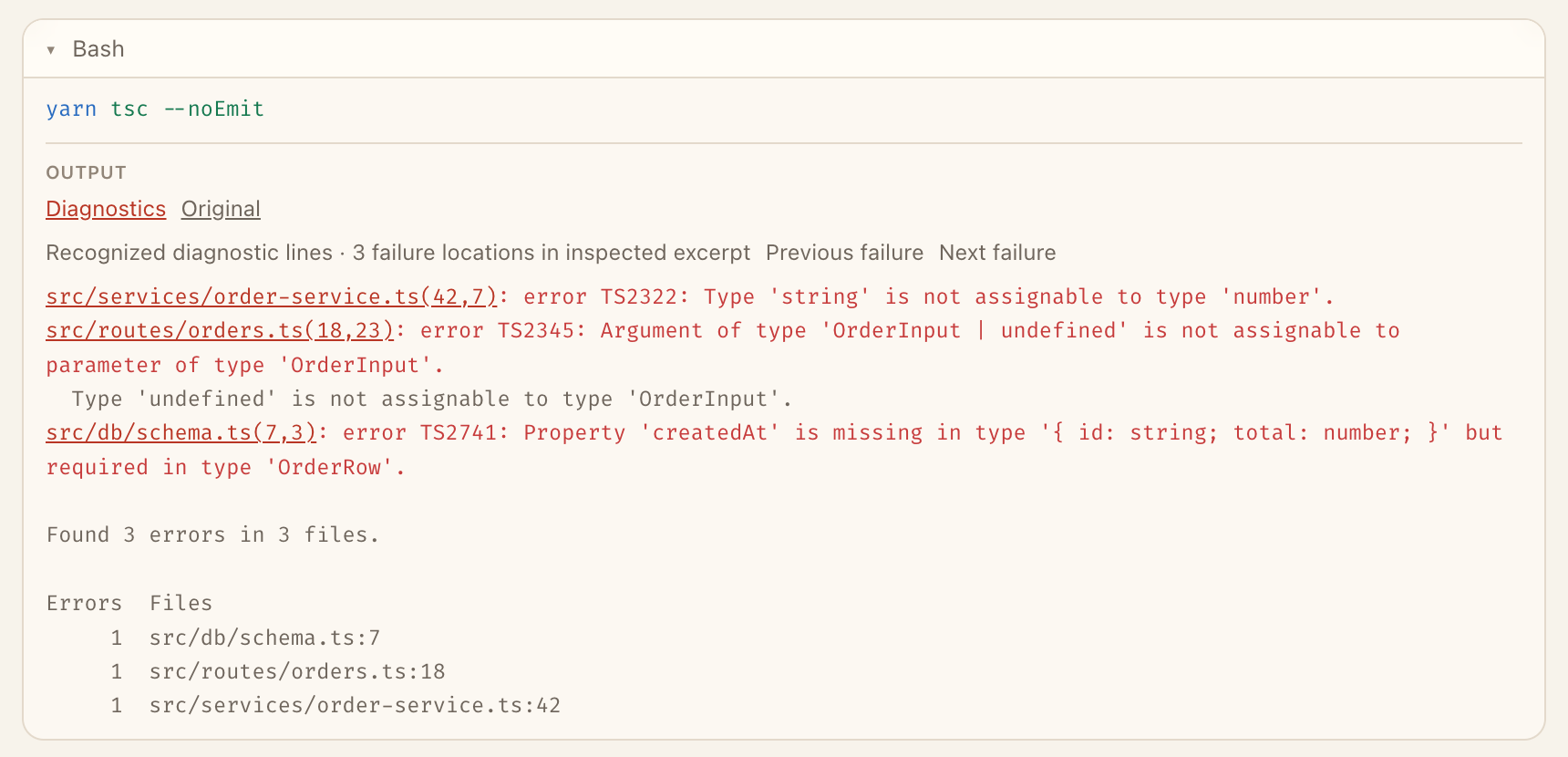
- Test and compiler output opens in Diagnostics. Previous failure and Next failure move between the failing lines, and each file location opens the file at that line.
- A Markdown file that the agent read shows with its formatting.
Choose Original to see the raw text. Long output is split into pages.
Interactive views from MCP servers
Some MCP servers return an interactive view with a tool result, such as a chart or a small form. These views follow the MCP Apps standard. In Claude Code and Codex chats, Farero shows the view under the tool call, and you can use it in place. A view can also switch to full screen; Exit full screen brings it back into the chat. The view runs in a sandbox, and its requests go through the chat’s own provider connection.
Questions from agents
Questions from an agent can include formatting, code and links, in the question and in its options. After you send an answer, the chat keeps a record of it under the question. An answer typed into a password field shows as [redacted].